Excel2MySQL Excel to MySQL by Alan Lilly
Excel2MySQL is a standalone freeware utility which can be used to load / import / convert excel spreadsheets into a MySQL database. This is the quickest and easiest way to convert excel to mysql. There are other solutions available to solve this problem, but I believe this solution is easier, quicker and cheaper than most.
Even though this utility is freeware, if you like it, I do ask that you watch some of my youtube videos and share them with your friends.
There is no need to install, it is a stand-alone exe. Just download, unzip and run it. It does require that you have Microsoft Office or Microsoft Excel installed because it uses the “Component Object Model” API to interface with the spreadsheet.

Download http://www.panofish.net/download/Excel2MySQL.zip
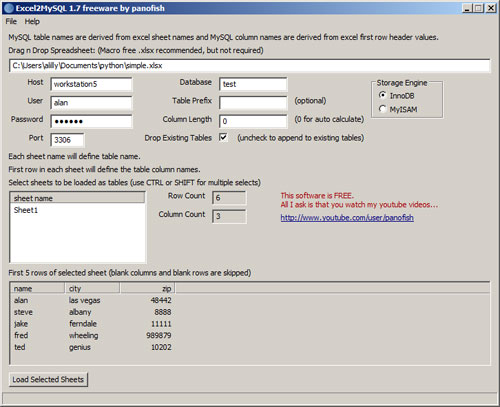
The program is fairly intuitive.
I don’t think there is a better excel to mysql converter / importer available, especially at this price (free)! The current version of this application does not support Unicode characters yet (i.e. Japanese, Korean, Russian… etc.)
Can it connect remotely?
I use my Excel2MySQL tool and HeidiSQL to access MySQL databases on my local machine (127.0.0.1 or localhost), on my local network AND on remote host provider servers like my favorite Hostgator. It depends on your provider, but in my case (Hostgator), I have to add my remote ip address to an allow-access list which I can do myself through my hostgator account cpanel. Then I can access my mysql database through standard tcpip port 3306. I use my hostgator server ip address for my hostname, same as I would for http or ftp access. And I use the same userid and password I would to access the mysql database… and again this is all easily configured through my hostgator cpanel. Keep in mind that your remote ip may change from time to time and you will have to add the new ip address to the access list. Hostgator provides a simple webpage to that displays your remote ip address if you don’t know it… http://www.hostgator.com/ip
Here is Hostgator’s excellently documented remote MySQL connection page.
Having trouble connecting?
There are many causes for failed connection errors like “2003 – Can’t connect to MySQL server”. Sometimes, your connection can be blocked by your firewall or possibly virus softare, so make sure your MySQL port is open. Sometimes you need to remove the default anonymous user account in your MySQL server, otherwise attempting to connect to localhost may fail for other user accounts. Some MySQL configurations fail to connect with localhost, but port 127.0.0.1 will work instead. Please let me know if you have a problem, I’d like to help :)
If you like my free program and want to support my efforts… you are welcome to donate any amount you like.
THANKS!
Watch this video to see how it works!